

Settings
Shop-wide behaviour, the feature switches, branding, the app's language, and storefront translations.
Settings, in the app’s sidebar, holds what applies to the whole shop rather than to one widget. It has two parts: General and Translations.
Storefront behaviour
| Setting | What it does on your storefront |
|---|---|
| Open recommended products in a new tab | Clicking a recommended product's picture or name opens it in a new browser tab, leaving the shopper's current page where it was. Off, it opens in the same tab. It covers every widget, including the cart's inline offer. Buy together rows tick and untick rather than open, so they are unaffected. |
| Send shoppers to the cart after they add an item | After an add to cart from a widget, the shopper is taken to the cart page. Off, they stay where they are, and your theme's cart, or cart drawer, refreshes to show the new item. |
| Product image shape | Square, Portrait, or Match the image, for the product pictures in every widget. |
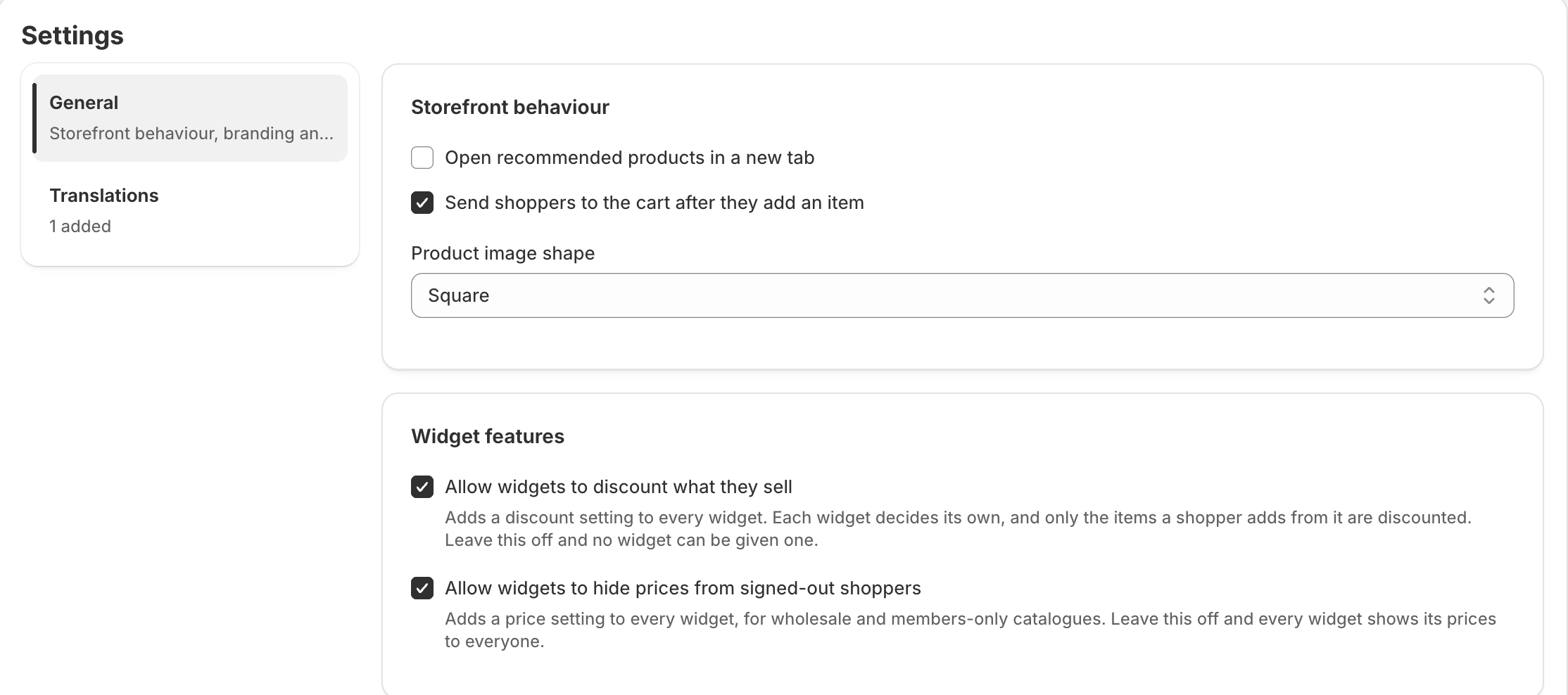
Widget features
Two switches decide whether a Pro feature is offered to your widgets at all. Each widget then decides its own.
- Allow widgets to discount what they sell adds the Discount setting to every widget. See Discounts.
- Allow widgets to hide prices from signed-out shoppers adds the price setting to every widget, for wholesale and members-only catalogues.
Both start on. Turning one off hides the setting from every widget and stops it on the storefront, but each widget keeps what it was set to, so turning it back on restores them all. On Free both are shown unticked and disabled.
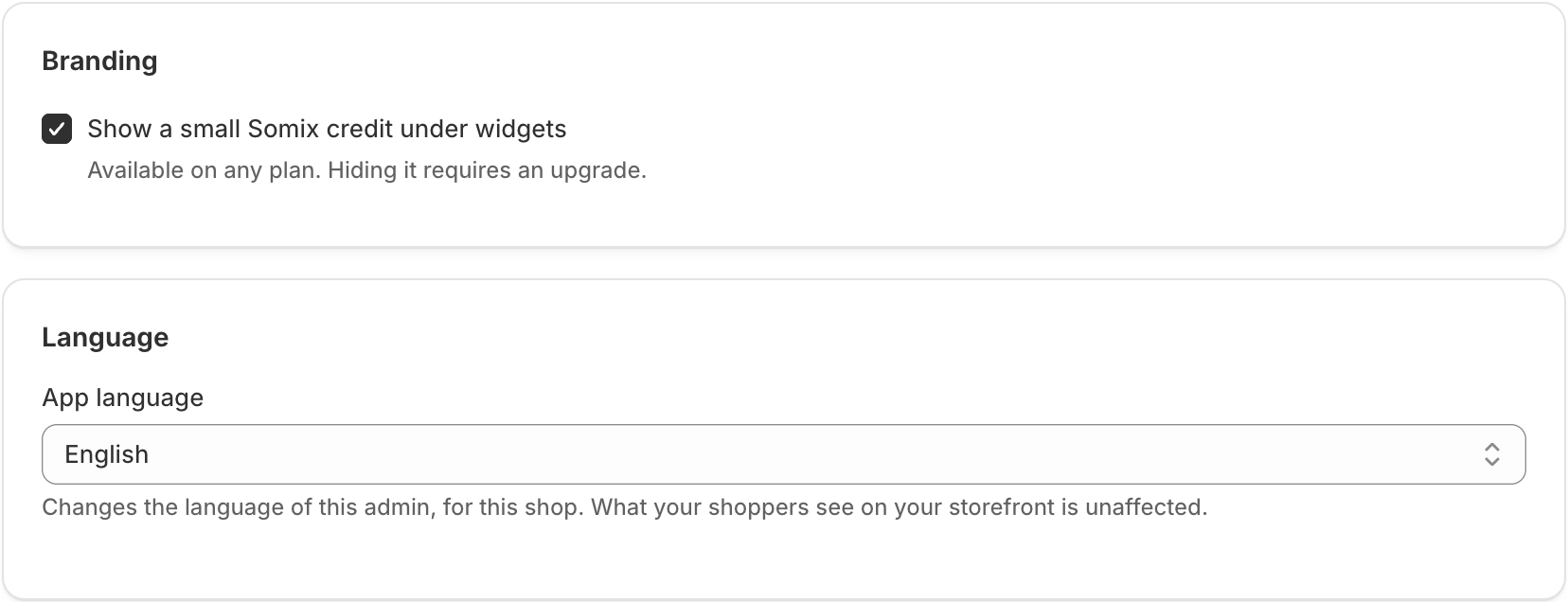
Branding
Show a small Somix credit under widgets is on by default and available on any plan. Turning it off is a Pro feature.
App language
App language changes the language of this admin for your shop: English, French, German, Italian, Japanese or Spanish. Every screen follows it, and the admin switches as soon as you choose, so you can see it before you save. It does not change what shoppers see.
Storefront translations
Translations is where you write the words shoppers read on your widgets in other languages. Press Add or remove languages, pick the languages your store sells in, and give each one your own wording for:
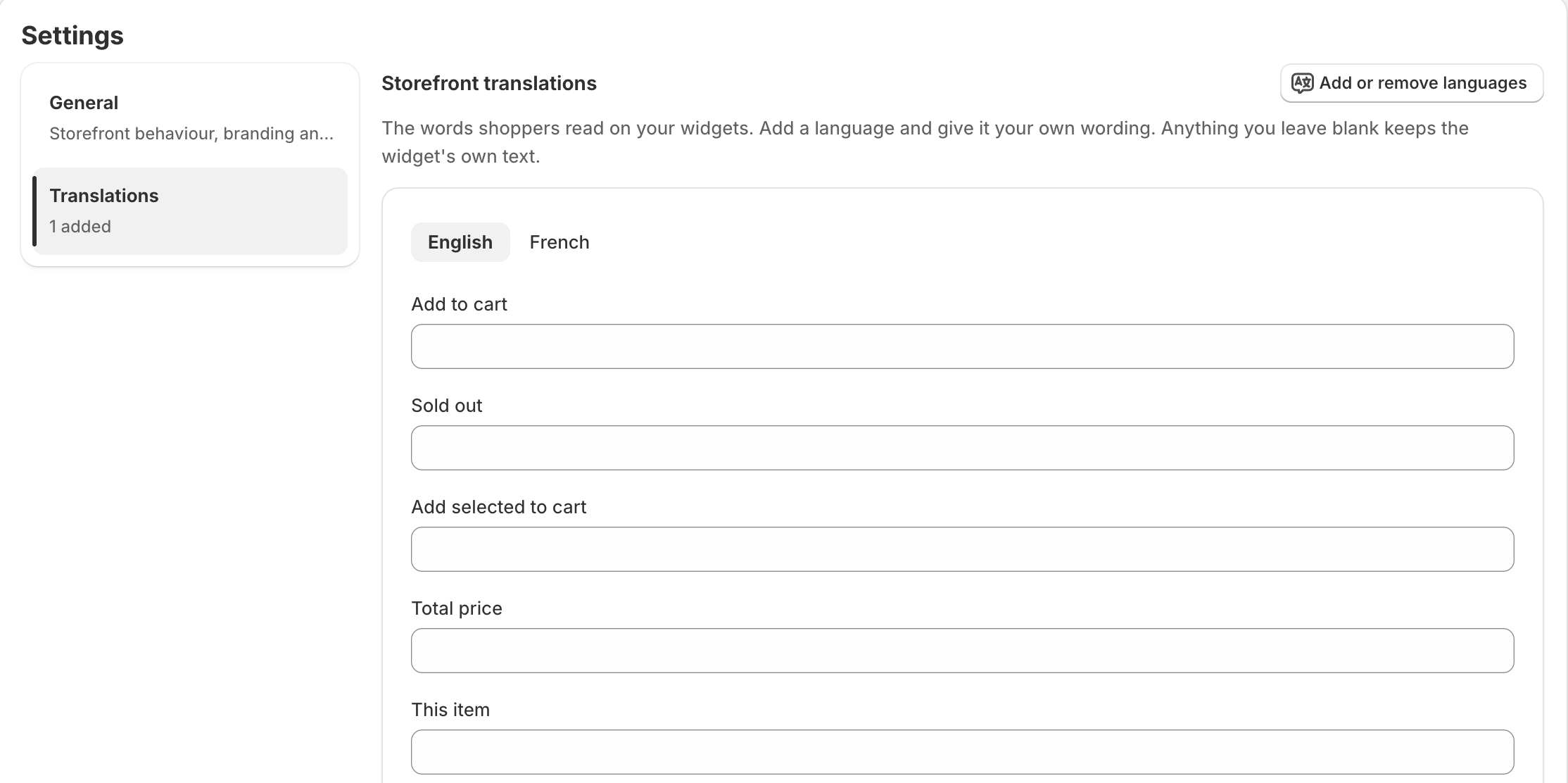
- Add to cart, Sold out and Add selected to cart
- Total price, This item, and the bundle saving line, where {amount} must stay so the saving can be filled in
A shopper sees these when their storefront language matches. Anything you leave blank keeps the widget’s own text. Headings and supporting lines are set per widget, in its Text section.
Something here wrong or missing? Tell us. We would rather fix the page than answer the same question twice.