

What Somix Related Products does
Recommendations, cross-sells and buy-together bundles as a theme app block, and what that means for your storefront.
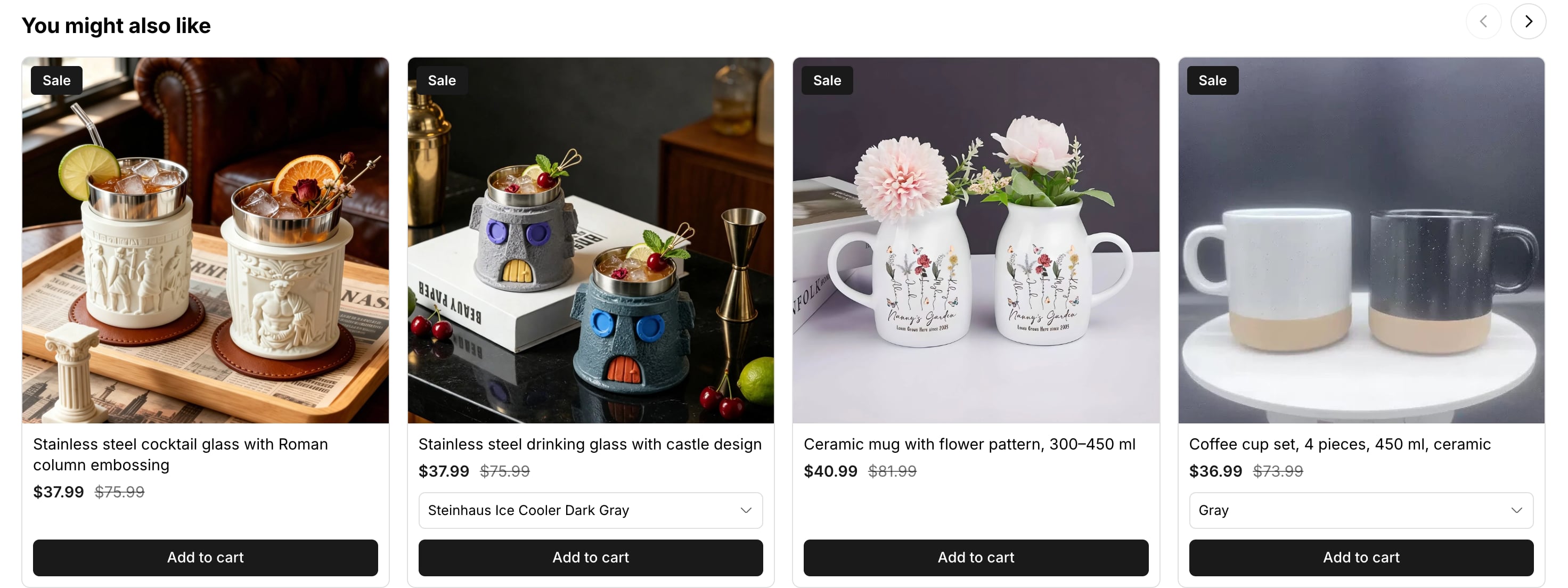
Somix Related Products puts product recommendations on your storefront: related items, cross-sells, add-ons, recently viewed, buy-together bundles and an offer inside each cart line, with an optional discount on any of them. It installs as a theme app block, so there is no code to paste and nothing left in your theme when you remove it.
How it works
You build a widget in the app: where it appears, what shape it takes, and how products are chosen. The Appearance screen then sets how it looks. Then you drop the Somix block onto the page you want it on, and the block draws whichever of your widgets belongs there. A widget can also place itself under the add-to-cart button or next to an element you name, and the cart’s inline offer draws itself inside each cart line.
The part worth knowing is what happens at request time: nothing. Your storefront never calls our servers to render a widget. Its configuration is read out of a Shopify metafield in Liquid, and the products come from Shopify’s own recommendations endpoint on their CDN. That is why the app can be fast on a store we have never seen.
What you need
- A Shopify store with the Online Store channel, because Somix renders in your theme, so it cannot work without one.
- A theme that supports app blocks. Every Online Store 2.0 theme does, including all of Shopify’s free themes.
- A few products. Recommendations need something to recommend; a store with three products in one collection will look thin whatever app you use.
The two switches
Almost every “the widget is not showing” message we get is one of these two being off. They are separate on purpose: the first turns the app on for your theme, the second decides where on the page it draws.
- The app embed loads the shared stylesheet and script, and connects the widget to your cart. On its own it renders nothing.
- The app block is the thing on the page. It only draws where you place it.
The setup guide on the app’s home page walks you through both, then your first widget, and ticks each step off once it can see it is done. It reads your live theme to check. If it cannot, each step’s menu has I’ve done this so you can tick it yourself.
Something here wrong or missing? Tell us. We would rather fix the page than answer the same question twice.