

Buy-together bundles
Checkboxes, a running total and one-click add, plus what gets recorded when a shopper uses it.
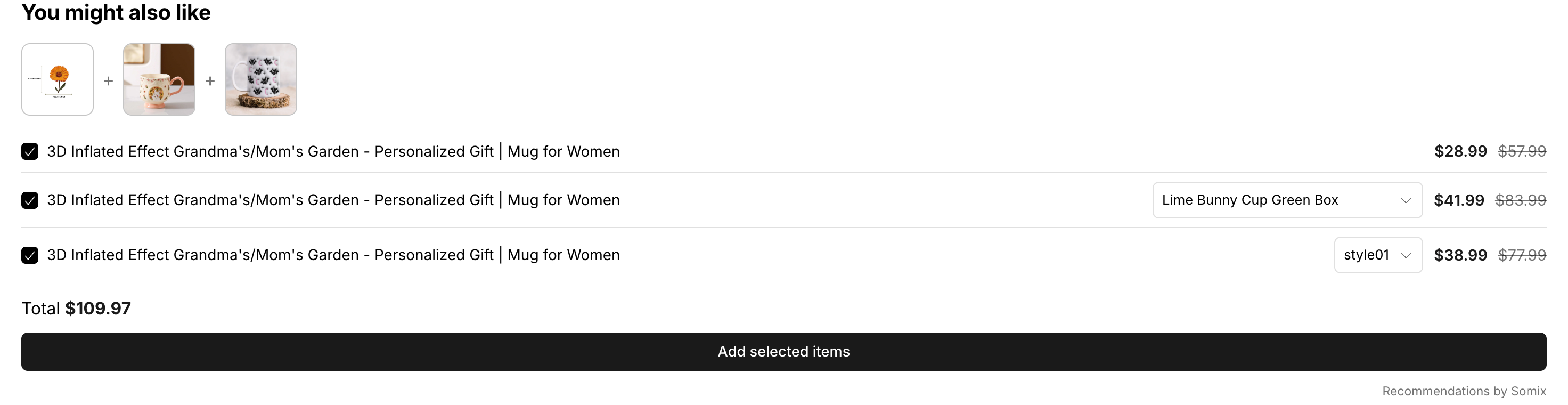
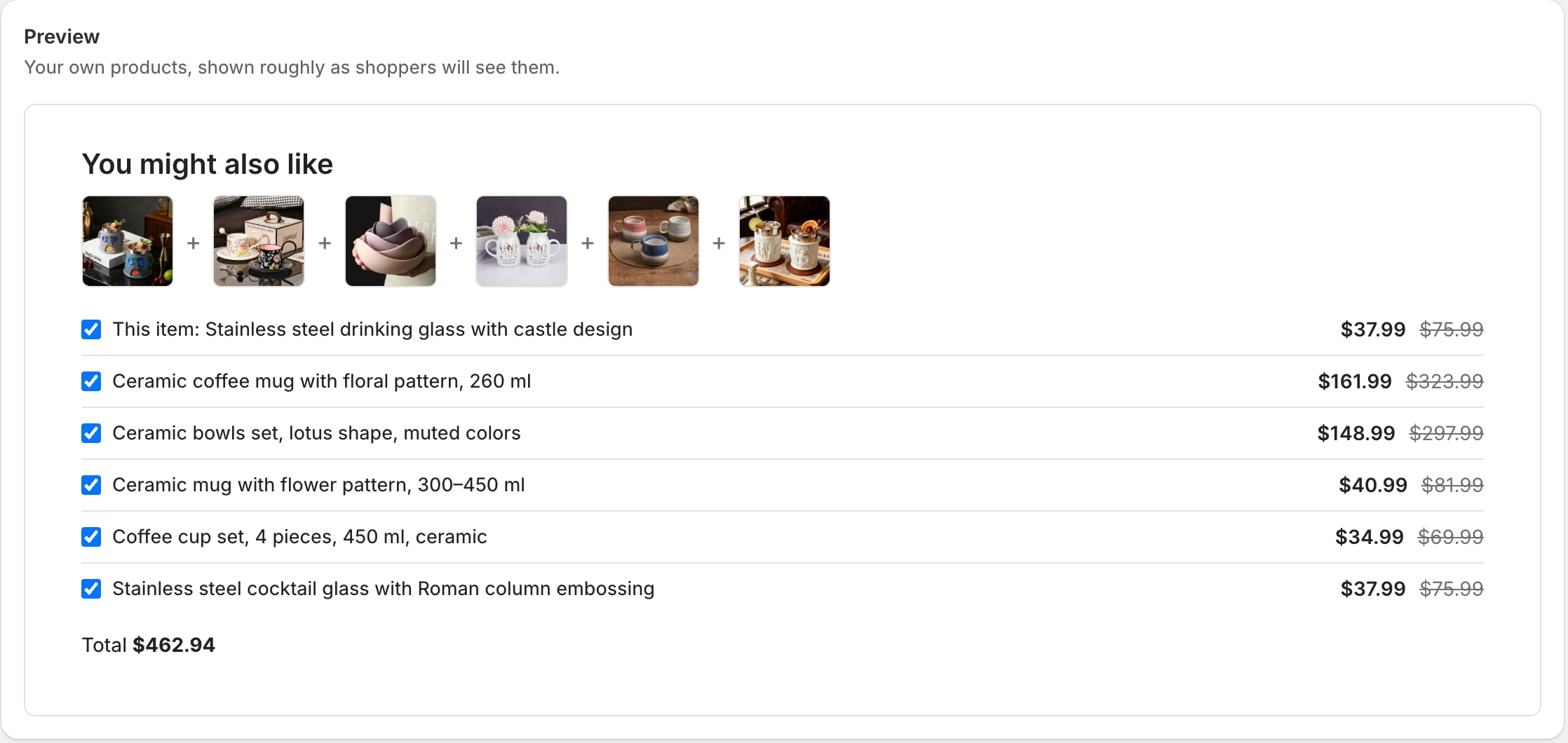
Buy together shows items that go together, each with its own checkbox. On a product page the product being viewed comes first. The total updates as a shopper ticks and unticks, and one button adds everything they chose. It works on every placement, including the cart.
What a shopper sees
- On a product page, the product being viewed first, already ticked. Turn off Include the product being viewed if the bundle makes more sense without it.
- A real checkbox per item, with a proper label, so it works with a keyboard and reads correctly to a screen reader.
- A variant picker on any item that has more than one variant.
- A running total, with the saving spelled out underneath when a discount applies.
- One Add selected items button.
- An unticked row fades a little, picture included, so it is clear at a glance what the total is counting.
Both numbers are announced together as one sentence when they change, so a shopper using a screen reader hears “total, you save” rather than being interrupted twice.
Setting one up
- Create a widget and choose the Buy together layout.
- Under Recommendations, choose a source. On a product page or the cart, Buy together offers Shopify’s complementary products, Products I choose and Rules I define; elsewhere, Products I choose. The tag and vendor sources produce bundles that do not belong together, so they are not offered here.
- In the same section, decide whether the product being viewed is included, and set a Discount if you want one.
- Create or save it, then on the Appearance screen choose one of its three styles and whether rows start ticked, with Buy together: start with every item checked.
- Check a real page on your storefront.
Sold out, single variants, cart drawers
- A sold-out item is shown rather than silently dropped: unticked, disabled, labelled with your Sold out label, and left out of the total and the add.
- An item with one variant gets no picker, because there is nothing to pick.
- After adding, the theme’s own cart is refreshed through Shopify’s section rendering API rather than reloading the page, so cart-drawer themes open the drawer as they normally would.
What gets recorded
When a shopper adds from the widget, Somix writes a marker onto the cart line naming the widget it came from. That marker is what makes revenue attribution exact rather than guesswork, and it is what the bundle discount reads. It carries a widget id and nothing else: no shopper identifier of any kind. See Data and privacy.
Something here wrong or missing? Tell us. We would rather fix the page than answer the same question twice.