

Managing your widgets
The widgets table: live or paused, search and filter, bulk actions, deleting, and the widget code.
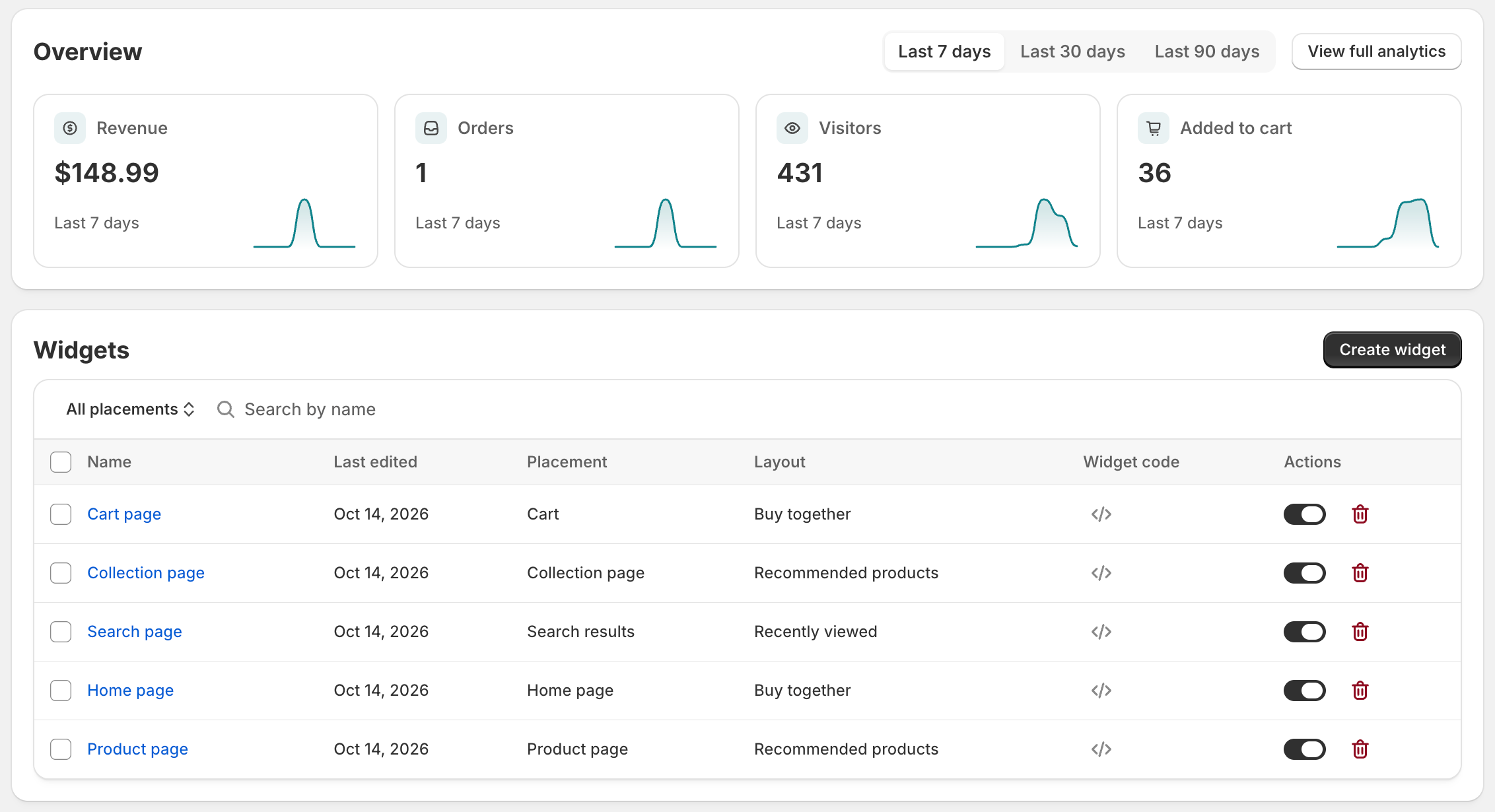
Every widget is listed in the Widgets table on the app’s home page, under the overview. It shows each one’s name, placement, layout, status, widget code and when it was last edited. Click a name to open it in the editor.
Live or paused
The switch in each row sets a widget Live or Paused. A paused widget stays exactly as you built it and simply stops drawing on your storefront.
On Free one widget can be live at a time, so setting one live pauses the others. A widget that uses a Pro feature cannot be set live on Free; its switch is locked, and hovering it names the feature.
Finding and changing several at once
- Search by name, and filter by placement with All placements.
- Tick widgets, or tick the header to select them all, and use Set live, Pause or Delete.
Saving and deleting
Saving a widget publishes it at once and takes you back to this table, with a note naming the widget you saved. A save that cannot go through, such as a widget with no name or a discount with no amount, keeps you in the editor with the reason shown.
Delete widget at the foot of the editor, or the delete action in the table, asks you to confirm and then removes the widget from your storefront straight away. Its settings cannot be recovered.
Widget code
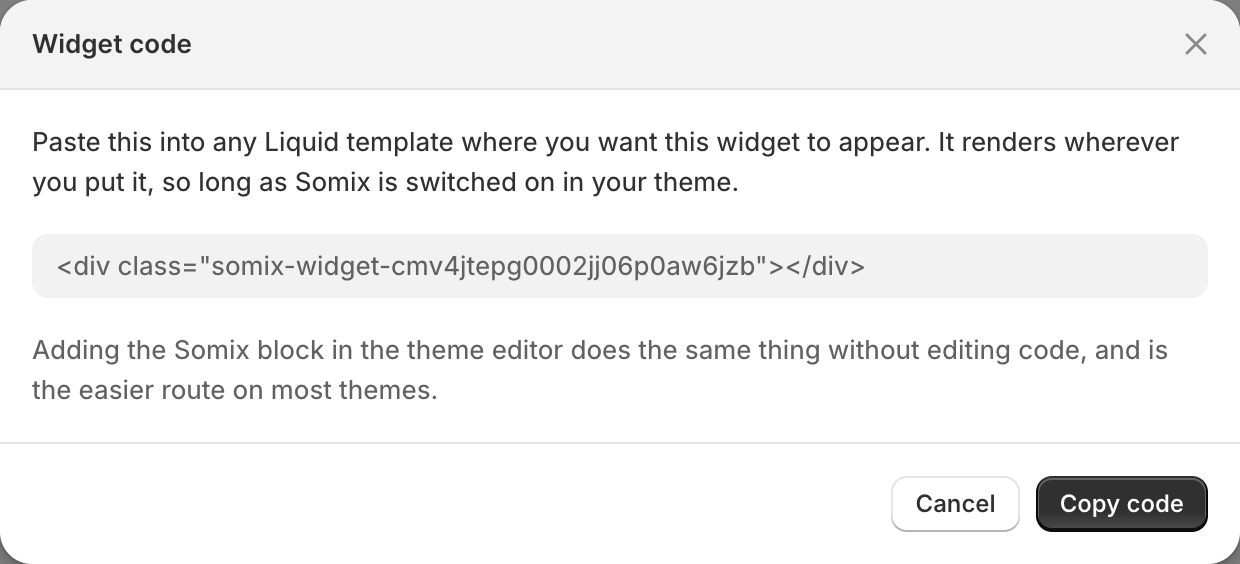
Each row has a Widget code you can copy: a short marker to paste into any Liquid template where the theme editor will not let you add a block. It carries no settings. Everything about the widget stays in the app, and it draws as long as the Somix app embed is on.
Something here wrong or missing? Tell us. We would rather fix the page than answer the same question twice.